
This tutorial will help you understand how you can record your gameplay footage and upload it for editing. This tutorial also covers only PC players. Consoles are incompatible with this setup. Even if you don’t play with us regularly, you can participate! We would love to have 5 people recording every day! And keep your footage at least for 3 days before deleting it!
What you’ll need:
- Any kind of PC system – following DOESN’T take away from your gaming performance
- OBS app for recording (free)
- Addressing privacy concerns
- Pterodactyl account and WinSCP app for uploading (both for free, ask admins in needed)
- Addressing privacy concerns
- File recovery, in case of a corruption
- Typical problems to avoid
If at any point you wouldn’t be sure how to set up OBS or WinSCP currently, just call MoravianLion on Discord. We’ll do it together.
Additionally – for some people, OBS can sometimes stop recording without any warning. Check if OBS is recording from time to time!
OBS can be downloaded here and is a very powerful freeware anyone can use.
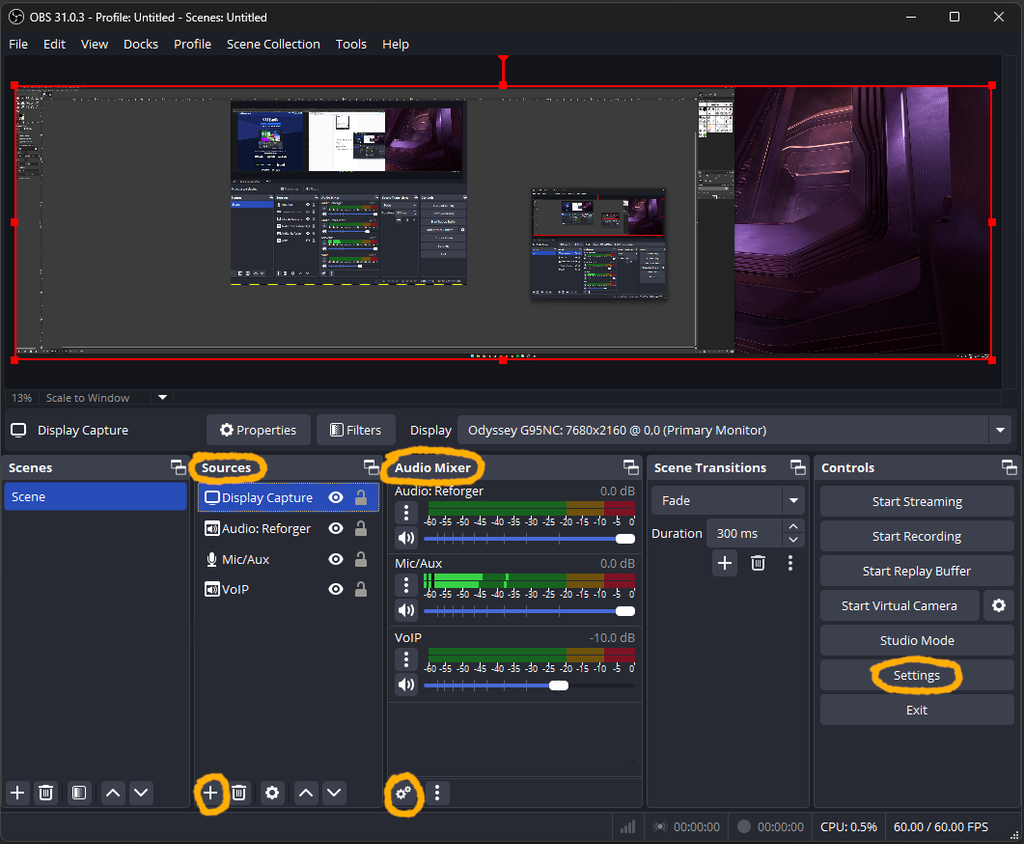
If this is your first time with OBS, you’ll have to set up Sources and Audio mixer settings. In Sources, click the “+” button below. You either want to capture the entire screen (Display capture), single monitor or only a specific application window (Game window). In order for the Game capture option to work proper, you need to start the game and then select the game in the Display option (just above the “Audio Mixer” tab on the picture above).
Addressing privacy concerns:
- If the Game window option is selected, the video will be black if the game is in the background. For example, you alt-tabbed to the desktop, but when clicking back into the game, video will display as intended – this prevents any personal information leakage, in case you’re worried about your privacy. When display capture is selected, everything is being recorded.
For our mutual gameplay recording, you should have at least following options active under Sources tab:
- Display/Game capture – for video input
- Application audio (BETA)
- for recording in-game sounds, including radios
- to work proper, you need to start the game and then select the game in the Window option (just above the “Audio Mixer” tab on the picture above).
- Audio input capture – your microphone
- Application audio (BETA) – Discord (in case it’s needed)
Separating audio to 3 separate layers helps a lot in editing.
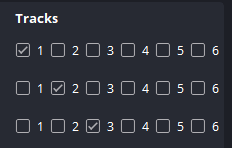
Under Audio Mixer tab, hit 2 gears icon at the bottom and make sure “Tracks” part is in following order:
- Game audio capture has checkmark No.1
- Microphone capture has checkmark No.2
- Discord audio capture has checkmark No.3
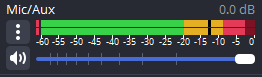
Additionally, under Audio mixer, pay attention to audio levels. If the game, microphone or Discord parts are reaching the red zone, you might want to lower them to at least yellow levels. If they are too low, increase the sensitivity. But generally speaking, for post production, it’s better to have quieter audio rather than overblown/too high.
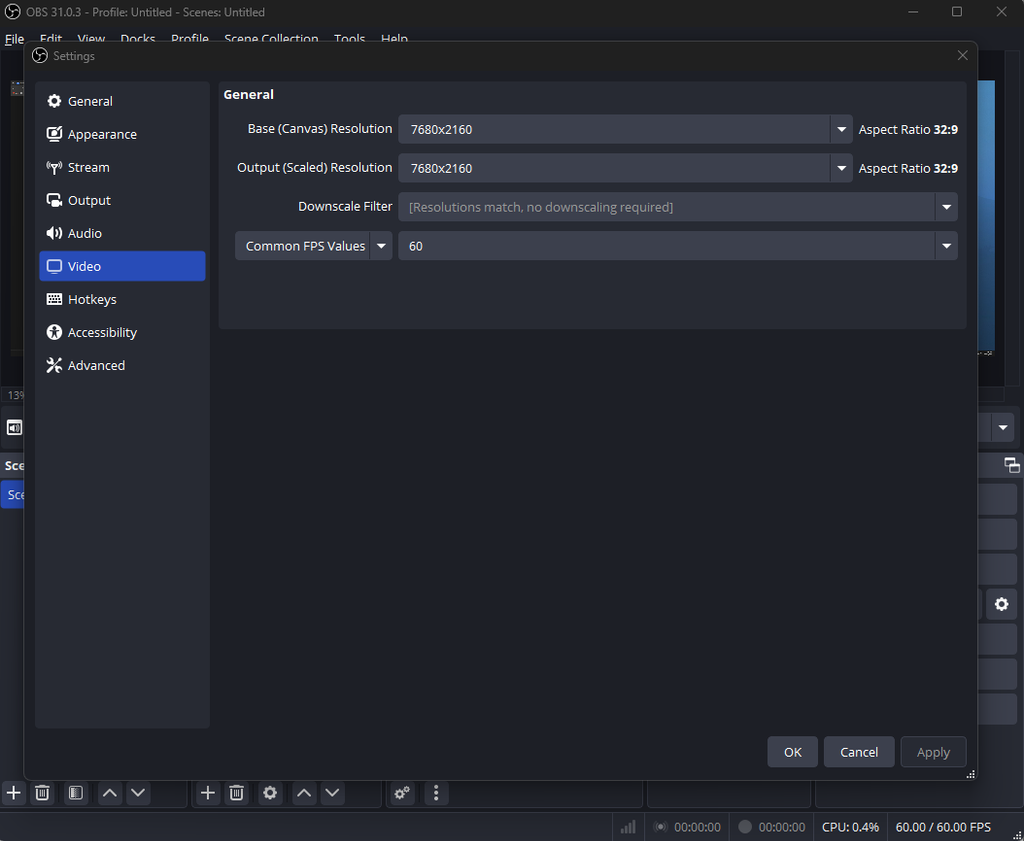
OBS general settings:
Under the Video tab, make sure you have your main display’s native resolution selected and 60 fps. It doesn’t matter if your PC is capable of delivering more or less than 60 fps. But this value is crucial for a smooth editing process. You can still play with whatever fps is your PC capable of delivering.
For AMD users, you can copy paste following setting.
- Set CQP for 1080/1440p at 20
- Set CQP for 4k at 30
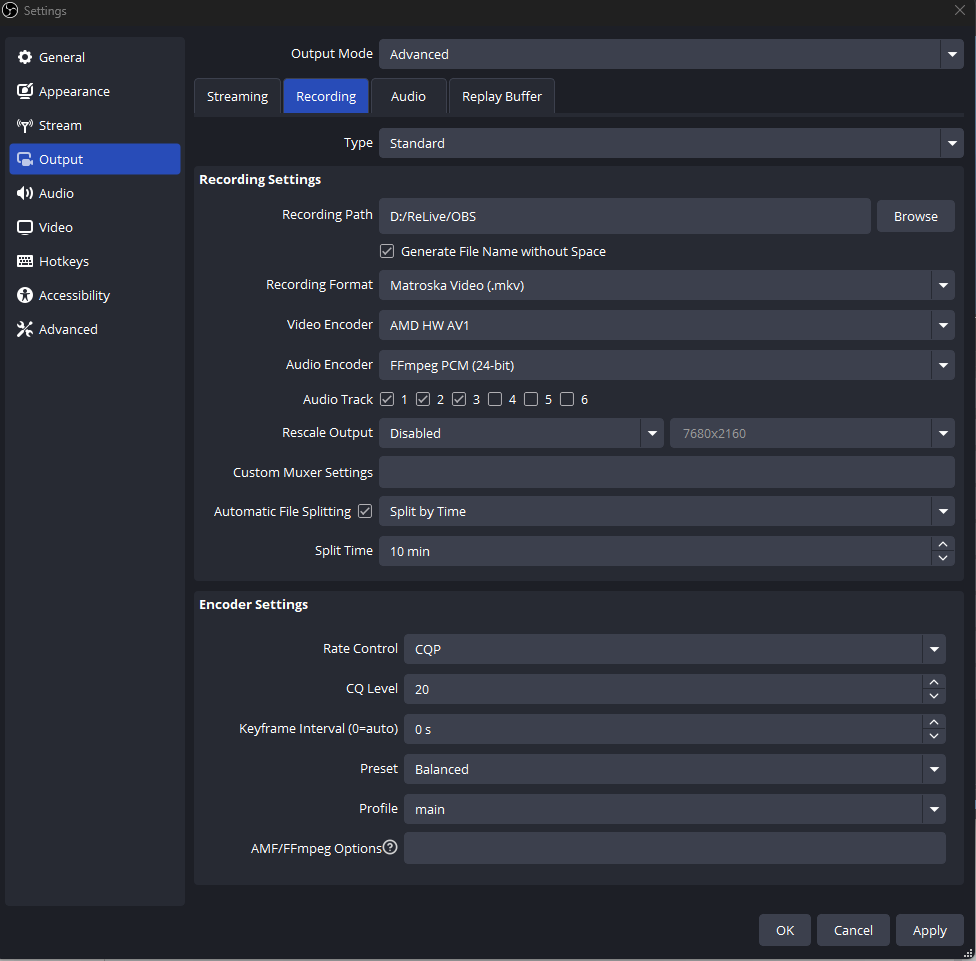
For nvidia users, you can copy paste following settings.
- Set CQP for 1080/1440p at 20
- Set CQP for 4k at 30
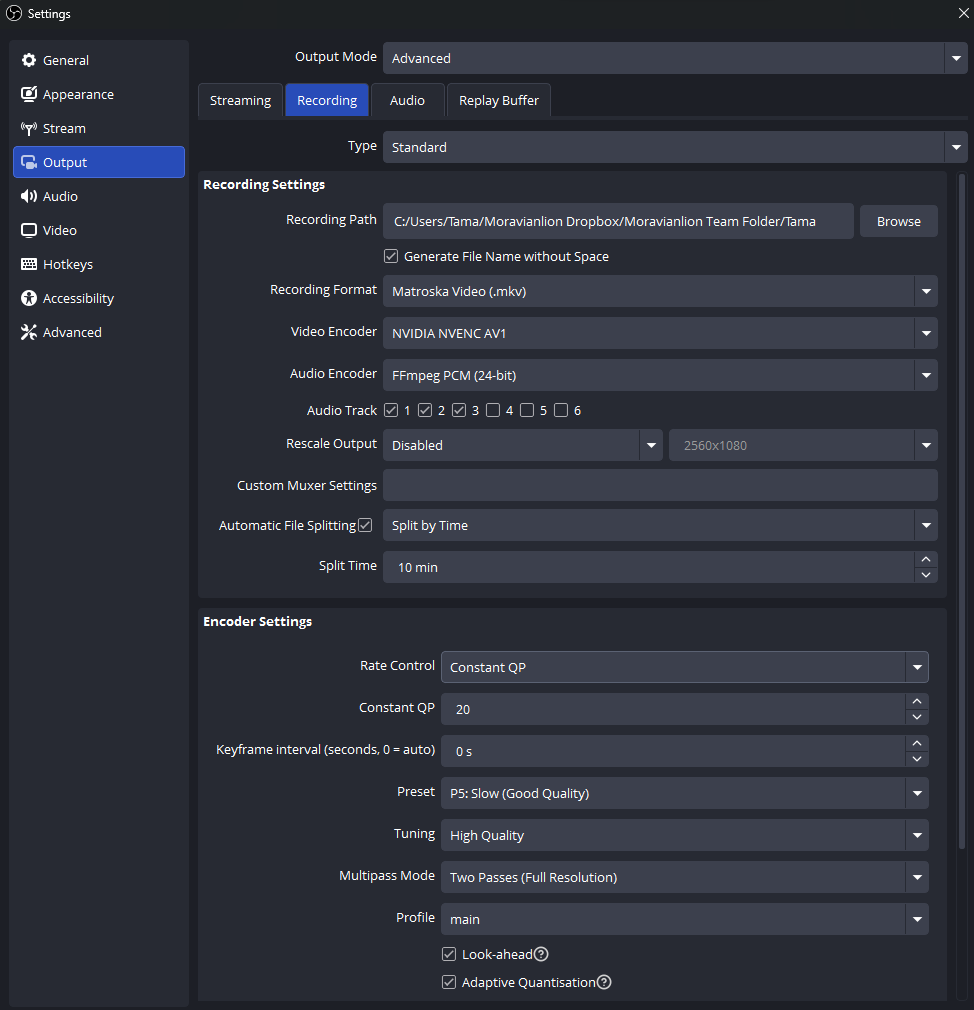
If you’re using an Intel GPU, call me, MoravianLion, on Discord. Those GPUs are pretty rare and I’d like to take a look at it with you!
How to upload:
- Download and install WinSCP app
- Login into Pterodactyl panel. If you are new to Pterodactyl, ask admins on Discord to make an account for you. Temporary password will be 1234. Please, change the password right after the first login.
- Head over to FiveM server. Click Settings tab on the top. Now, click on Launch SFTP. Your login details are same as for Pterodactyl panel. Now you’ll be able to browse inside FiveM server files. Head over to VIDEO FOOTAGE folder. There, if none, create folder with your nickname. Create a subfolder with date and name of the operation/event and simply drag and drop your video files. Done.
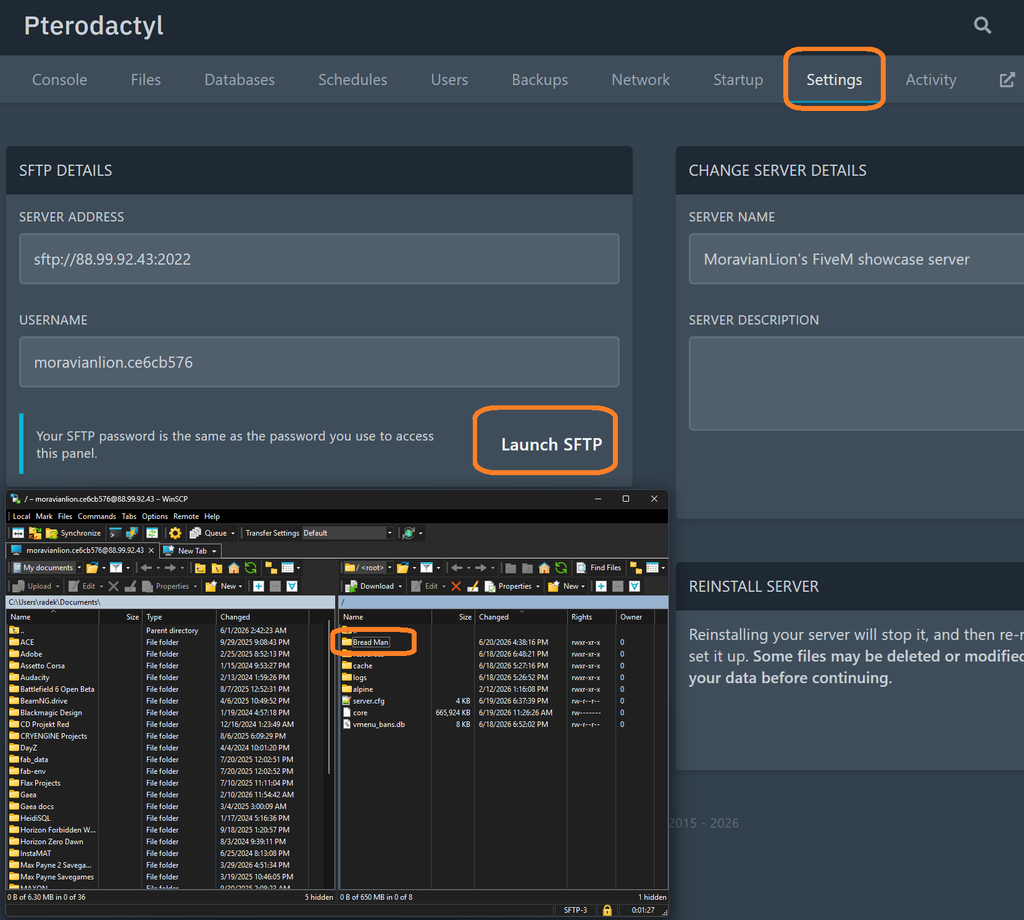
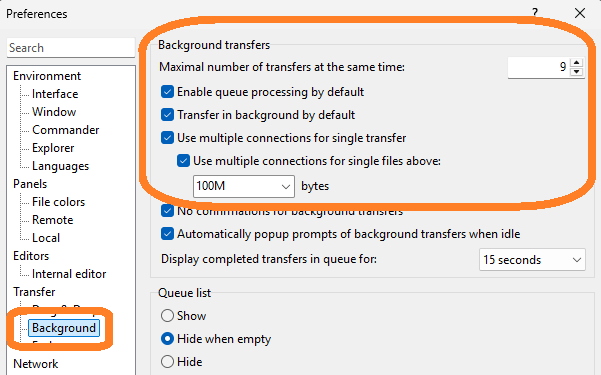
To further improve upload speed, make sure these options are checked AND the maximal number of transfers is at 9 inside of WinSCP settings.
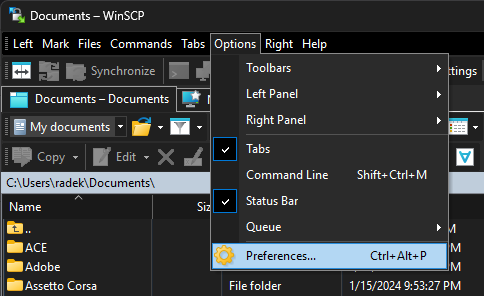
Additionally, WinSCP allows you to create desktop shortcut for quick login. This shortcut can be created within the main login window after the WinSCP launch. Look for the Manage button on the bottom left.
How to deal with potential data corruption
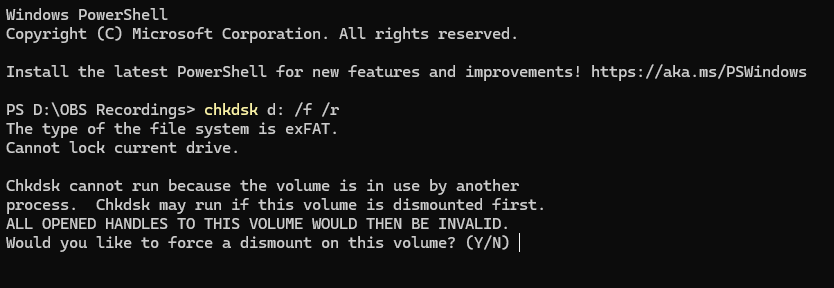
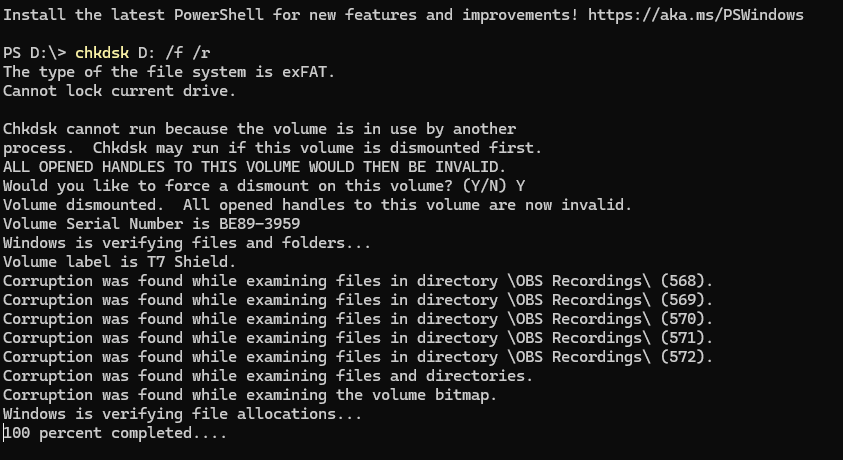
- folder/file corruption can happen on an occasion. “folder YX is not accessible. The file or directory is corrupted and unreadable.” It can be recoverable. So, here’s how, in case you’ll need it. In the Start menu search bar, search for command prompt Select Run as administrator.
- Type chkdsk x: /f /r (replace “x” with your actual drive letter, i.e. checkdsk e: /f /r).
- Press Enter. Dismount your drive, if needed. Restart your PC after all this is done.
Typical problems to avoid
Often people start recording, then turn it off when there’s some disruption. Such as start of a new round, server restart or whatever else. Keep recording from the start to end, even if that would mean to record 5-10 minutes of black screen when your game is turned off! Otherwise I will have a much harder time synchronizing every person’s footage together.
Majority of the recording crew upload their videos right after the match, before they go to bed. I have a very slow internet connection, so I download over night those few hundred GBs. Plus it takes my very fast PC about 3 hours just to convert all the footage to editable proxy files in the morning. And I try to delete all the footage from our server as soon as possible, so we don’t run out of space. If you are unable to upload everything after the match, DM me, so I’ll know I should wait before moving onto editing and deleting everything!